
FAQ-en
This section contains instructions for installation and use of software. Before you ask your question to the support team, read this section and only after that, if you have not found the answer to your question, you can contact us.
INSTRUCTIONS AND SUPPORTING FILES
Installing the original Uuprogs software from Elrasoft
Here are the instructions for downloading and installing the Uuprogs software for UPA-USB programmer.
1. Link to login to your Elrasoft account:

2. Log in with your User Name and Password. User Name and password will be sent to you by e-mail, when you pay for the programmer order, along with the attached license file uuprogs.lic
Login: RU276543210 (example)
Password: wnawvjxd (example)
3. In your account you will see a link to download the latest Uuprogs software version.

4. After the download is complete, unzip the downloaded file and run the installer.
5. Follow the instructions to complete the installation.
6. Copy the uuprogs.lic file into the uuprogs installation folder. By default, the folder is located in the way:
C:\\Program Files(x86)\\ELRASOFT\\UPA-USB Suite\\Device Programmer-S
7. Install the device driver. The driver is located in the program folder:
C:\\Program Files\\ELRASOFT\\UPA-USB Suite\\USB Driver
8. Connect the UPA programmer and run the Uuprogs program.
9. When the activation dialog box appears, click the "get activation" button.

10. Login with the User Name and password received from the ELRASOFT customer center as above.
User Name: RU276543210 (example)
Password: wnawvjxd (example)
11. If necessary, enter the hardware code and click "get activation" .
12. Copy the activation key and paste it in the uuprogs activation window, click "activate".
If you have any questions about the operation, installation, activation of the UPA-USB programmer, please contact Elrasoft support by e-mail:
support@elrasoft.com
Serial number for ordering scripts
The serial number can always be found in the lower uuprog window, when the programmer is connected as shown in the figure below:

Calculators and scripts installation
Recall that Uuprog program works under Windows XP (SP3) and in later versions.
1. Create the DeviceScripts folder in the program folder (if It is not created during the installation)
the path to this folder for Windows XP looks like this:
C:\\Program Files\\ELRASOFT\\UPA-USB Suite\\Device Programmer\\DeviceScripts or
C:\\Program Files(86)\\ELRASOFT\\UPA-USB Suite\\Device Programmer\\DeviceScripts in later versions of Windows
the path may be different if you choose a different installation location.

2. Put scripts files (.udxp) into DeviceScripts folder:
C:\\Program Files(86)\\ELRASOFT\\UPA-USB Suite\\Device Programmer\\DeviceScripts\\
3. Install Help files. Use the way to create new folder:
C:\\SOFTDUMP\\HELP\\
4. Restart the program Uuprog (UPA-USB). In the device tree (on the left side of the program window) you will find installed calculators and scripts.

5. Note that the program works with the programmer only in the first running window of the program, where the connection with the programmer is determined. Do not forget connect the programmer before running the uuprogs program. Without the programmer, the scripts will not work.
Working with SoftDump scripts
After installing the new scripts and restarting the uuprogs program you can find a list of them in the device tree (Device Manager) on the left side of the working screen of the program. Click on one of the required items from the list and a window of the script you need will appear in the right part of the editor dump.
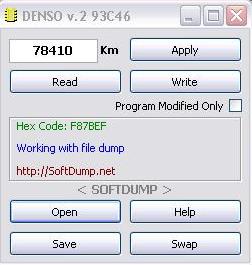
Most of the calculator Windows are the same type. Consider the purpose of buttons and information areas on the example of one of them:
The
The
The
The
The
The
The
The
The
SoftDump script package Update
Updates are only available in batch offers. Administrator SoftDump will send actual packages or give a link for downloading. Before updating the scripts, the previous version of the package should be removed from the working folder with the scripts.
You must update the help files with the package. You also will get a link to download help files from the administrator. The standard path to the help files will be as follows:
C:\\Program Files\\ELRASOFT\\UPA-USB Suite\\Device Programmer-S\\DeviceScripts\\SOFTDUMP HELP
* If you have not selected a different path for the location of the script files.